SolarDialer

SolarDialer CRM app

An AI agent calls the contacts you choose in your CRM, finds out who is still interested, and transfers them to you live. Every call's result lands back on the contact.

Free to install. Calls are billed per minute from your SolarDialer balance, and the first $2 of calls every month are on us.

Call contacts from your workflows

Add the action Call with SolarDialer to any workflow, pick a campaign, and the contact is called in the campaign's hours, or right away.

Or just tag them

Tell SolarDialer which tag means "call this contact" and which campaign calls them. Contacts given the tag are called once.

Interested people come straight to you

When a contact says yes, your phone rings and they're on the line. Nobody answers? The agent books a callback instead.

Every call back on the contact

A note with the outcome, an AI summary, their answers, the transcript and a link to the recording; the fields SD Outcome, SD Last call and SD Campaign; tags for transferred, interested, callback and do-not-call leads.

Your pipeline, moved for you

Choose the pipeline stage for interested and transferred leads, and their opportunity is moved there. A callback adds a task on the contact.

Do not disturb, both ways

Contacts on do-not-disturb for calls are never called, and turning it on later stops their calls. Anyone who asks not to be called is put on do-not-disturb in your CRM too.

Open SolarDialer from your menu

SolarDialer appears in each business account's left menu, already signed in: no second password.

Built for any industry

Solar, roofing, HVAC and other home services, mortgage refinance, life insurance, or a vertical of your own: each with its own script, answers to objections and lead statuses.

Set up in 3 steps

  1. InstallClick Install the app, pick your business account (or several, for a company managing client accounts) and allow. Your SolarDialer account is made for you.
  2. Add your phoneOpen SolarDialer from the left menu and add the phone your interested leads are put through to.
  3. Send contactsUse the workflow action or a tag rule. Results come back to each contact as the calls happen.

Full setup guide

Everything you need to set it up and keep it running. Stuck? Email info@solardialer.net.
Watch it work

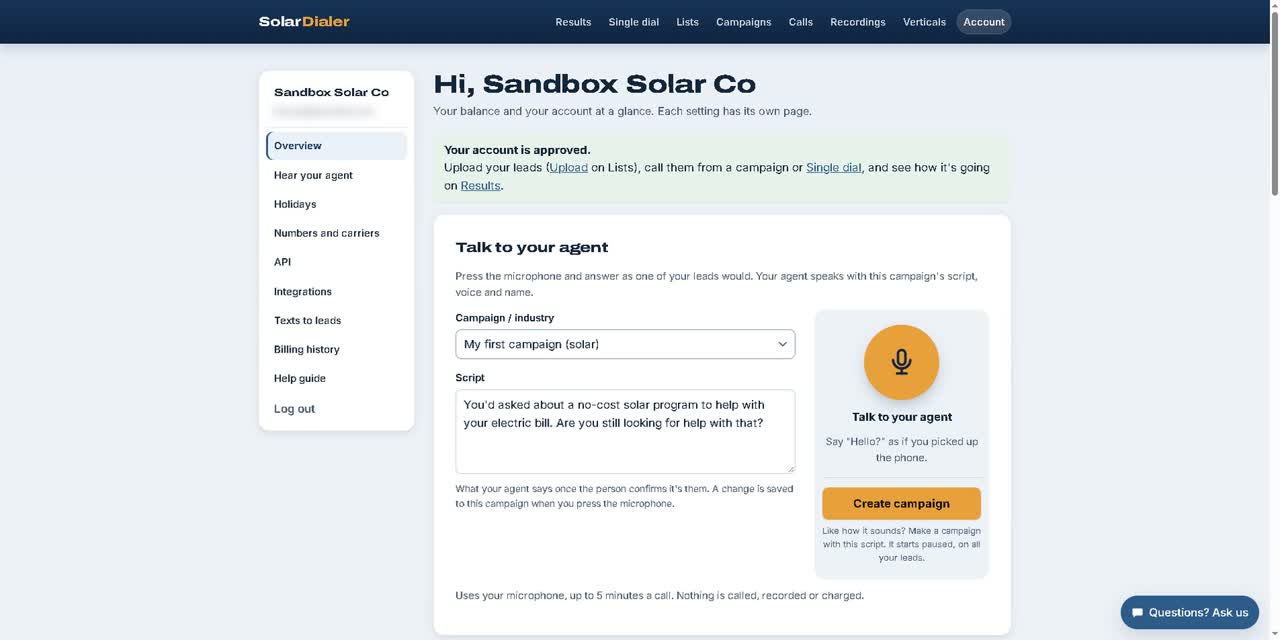
9 minutes on one account: the app installed from your CRM's App Marketplace, SolarDialer opening already signed in, the transfer phone, pipeline stage and tag rule, the Call with SolarDialer workflow action, then a new lead called within seconds, put through live, and the call back on the contact. Made-up people in a test account; the voice is an AI voice. Watch it on YouTube.

Before you start

  • A CRM business account, or the company account that manages your client accounts, where you can install apps from the App Marketplace.
  • Contacts with a first name and a phone number. A US contact also needs a state, or a ZIP code or area code SolarDialer can tell it from.
  • A phone your interested leads are put through to (US or Canadian). Without one, the agent books a callback with you instead.
  • No SolarDialer account needed: installing makes one for each business account.

Step by step

  1. Install the appOn solardialer.net/crm-app click Install the app. Pick your business account (a company managing client accounts can pick several), review the permissions and allow. A page saying SolarDialer is installed confirms which business accounts were set up.
  2. Open SolarDialer from the left menuIn the business account click SolarDialer in the left menu. It shows SolarDialer for your business and how many campaigns are running. Click Open SolarDialer: it opens in a new tab, already signed in, with no second password.
  3. Check your agent's scriptBefore the first call SolarDialer shows what your agent will say. Change anything you like, then press Looks good, start calling.
  4. Add your transfer lineOpen Account → Overview → Your transfer line, enter the phone interested leads are put through to and click Save transfer line.
  5. Choose where interested leads goOpen Account → Integrations. Under Your CRM, pick a pipeline stage in Interested leads go to, and optionally another stage of the same pipeline in Transferred leads go to. Click Save.
  6. Send contacts with a workflowIn your CRM, add the action Call with SolarDialer to a workflow. Pick the Campaign, choose When to call, and optionally write a Note for the lead. Each contact the workflow reaches joins that campaign.
  7. Or send contacts by tagOn Account → Integrations, under Contacts to call, type a Tag (for example call me), pick a Campaign and click Add tag rule. A contact given that tag, or created with it, joins the campaign once.
  8. Start the campaignOpen Campaigns in SolarDialer. Campaigns start Paused: press Resume to start calling. Results come back to each contact as the calls happen.
  9. Test itAdd your own number as a contact, send it with the workflow or the tag, and answer the call during calling hours. Afterwards the contact has a note, the SD fields and tags.

Sample workflows

Build these in your CRM's workflow builder, or use them as a starting point.

New lead: call right away
Create a workflow and start from scratch. Trigger: Contact created (or Form submitted, for leads from a form). Action: Call with SolarDialer, pick the Campaign, set When to call to Right away (within calling hours), and optionally a Note for the lead. Save and publish. Each new contact is called within a minute when it's within their calling hours, and on the campaign's schedule otherwise.
Old leads: work a list by tag
Trigger: Contact tag, filter Tag added, for example reactivate. Action: Call with SolarDialer, pick the Campaign, When to call: When the campaign calls. Tag the contacts you want called, in bulk from your contact list; the campaign calls them on its hours and pacing. A tag rule on SolarDialer's Integrations page does the same without a workflow.
Interested lead: tell me now
Trigger: Contact tag, filter Tag added: SD Interested (SolarDialer adds it when a lead says yes). Action: Send internal notification (or SMS) to yourself, with the contact's name and phone in the message. Use SD Transferred the same way for leads put through to you, or SD Callback to remind you of a booked callback.
Not interested: stop other follow-ups
Trigger: Contact tag, filter Tag added: SD Do not call. Actions: remove the contact from your other workflows and campaigns. SolarDialer already turns on do-not-disturb for calls on that contact.

Settings, explained

Campaign (workflow action)
The campaign the contact joins: your SolarDialer campaigns that haven't finished.
When to call: When the campaign calls (its hours and pacing)
The contact joins the campaign and is called on its schedule while it runs.
When to call: Right away (still only within calling hours)
SolarDialer calls the contact at once if it's within their calling hours; otherwise the campaign calls them later.
Note for the lead (optional)
Saved in the lead's notes in SolarDialer, up to 500 characters.
Tag rules
Up to 20, each a tag and a campaign. Tags match whatever their capitals. A contact already added by a rule isn't added again; Remove deletes a rule.
Interested leads go to
The pipeline stage the contact's opportunity is put in when a lead says yes. No pipeline: no opportunity is made.
Transferred leads go to (optional, same pipeline)
A different stage for leads whose transfer connected. The same stage: they go where interested leads go.
Your transfer line
On Account → Overview: the phone interested leads are put through to. Every campaign uses it unless the campaign has its own. Blank: the agent books a callback with you instead.
Pause on a failed transfer
On Account → Overview: when on, a transfer nobody answers pauses its campaign until you press Resume.

Triggers and actions

Actions: what your automation can have SolarDialer do.

Call with SolarDialer
A workflow action: adds the contact to the campaign you pick, to be called on the campaign's schedule or right away. Its run answers added, or skipped with the reason (for example the contact is on do not disturb).

What it reads and writes

Read from the contact
First and last name, phone, email, address, city, state, ZIP, country and do-not-disturb, when a workflow action or tag rule sends it.
A note on the contact
For each call that reached a person: the outcome, the AI summary, the lead's answers, the transcript and a link to the recording.
Custom fields
SD Outcome, SD Last call, SD Campaign and SD Recording (a link that plays with no login), made in your CRM the first time they're needed, for your own workflows and lists.
Tags
SD Transferred on a transfer, SD Interested when a lead says yes, SD Callback when a callback is booked, and SD Do not call when someone asks not to be called. Start your own workflows from these tags.
Opportunities and tasks
An interested or transferred lead's opportunity, named after the lead, at the stage you chose. A callback adds a task, Callback (SolarDialer), due when the callback is.
Do not disturb
Someone who asks not to be called is put on do-not-disturb in your CRM. A contact on do-not-disturb for calls is never added, and turning it on later closes their lead in SolarDialer.
Which contacts are made
Results go to every lead in the account, including ones uploaded on solardialer.net. A contact is created only for a call that reached a person, an interested lead or a callback; an unanswered call only updates a contact that's already there.

Troubleshooting

"The install couldn't be finished. Please try again from the app marketplace."

Your CRM didn't complete the sign-in for the app. Install it again from the App Marketplace, or with Install the app on solardialer.net/crm-app.

"The install was cancelled. Nothing was changed."

The permissions screen was closed or declined. Install again and allow.

"SolarDialer isn't installed in this business account. Install it from the app marketplace first."

The app is installed in another business account, or was removed from this one. Install it in this business account.

"Open SolarDialer from inside one of your business accounts: each has its own calls, leads and campaigns."

You opened it from the company level, not a business account. Switch to a business account and open SolarDialer from its left menu.

"Your CRM didn't answer. Reload the page."

The SolarDialer page inside your CRM couldn't get your sign-in from it. Reload the page; if it keeps happening, open it from the left menu again.

"That sign-in link has expired. Open SolarDialer from your CRM again."

Each Open SolarDialer link works once, within two minutes. Click Open SolarDialer again.

"This business's SolarDialer account is waiting for approval."

New accounts are approved by SolarDialer before leads are called. Set it up meanwhile, and talk to your agent in your browser: Single dial → Hear your agent.

The workflow action says skipped: "the contact is on do not disturb"

The contact has do-not-disturb on for calls, so SolarDialer won't call them. Turning it off in your CRM and sending the contact again adds them.

The workflow action says skipped: "missing required field: first_name" or "... phone"

The contact has no first name or no phone. Fill them in on the contact and run the workflow for it again.

The workflow action says skipped: "missing required field: state (needed for a US number)"

The contact has no state, and none could be told from its ZIP or area code. Add the state or ZIP on the contact.

The workflow action says skipped: "that campaign wasn't found"

The campaign was deleted. Edit the action and pick a campaign again.

Contacts were added but nobody is called

Check the campaign isn't Paused (press Resume), that the account is approved, that your agent's script was confirmed, that your balance or CRM wallet has funds, and that it's within the leads' calling hours.

A tag rule added nothing

A rule acts when a contact is created or its tags change, after the rule was saved, and adds each contact once. A contact tagged before that is added the next time its tags change. Contacts on do-not-disturb for calls are never added.

"Last problem sending results: ..." on the Integrations page

Your CRM refused or didn't answer a write. When it says trying again shortly, SolarDialer retries by itself; anything else was skipped for that one call, and the rest keep going.

"Your CRM's pipelines couldn't be read just now; reload to choose where interested leads go."

Your CRM didn't answer in time. Reload the Integrations page.

"Pick both stages from the same pipeline."

Transferred leads go to must be a stage of the pipeline chosen for interested leads.

Campaigns show "Paused: the SolarDialer app was removed from your CRM"

The app was uninstalled, or your CRM stopped our access. Install it again, then press Resume on the campaign.

Campaigns show "Paused: your CRM wallet is out of funds. Add funds to it in your CRM, then press Resume."

Add funds to your wallet in your CRM, then press Resume on each paused campaign.

Campaigns show "Paused: SolarDialer couldn't charge your calls to your CRM wallet. Check the SolarDialer app in your CRM, then press Resume."

Check the app is still installed and allowed in your App Marketplace, then press Resume.

FAQ

Why does the workflow step show a small per-run charge?

Your CRM charges its own premium-action fee, about a cent each time a workflow runs an app's step; SolarDialer doesn't set or get it. Premium triggers and actions must be switched on for the business account, or the step won't run. A tag rule on SolarDialer's Integrations page (every install starts with the tag solardialer) adds contacts without a workflow step, so without that fee.

Do I need a separate SolarDialer account?

No. Installing the app makes one for each business account, and opening SolarDialer from the left menu signs you in to it. An existing SolarDialer account is never taken over by an install, even one with the same email.

Can a company that manages client accounts install it for them?

Yes. A company that manages client accounts can install it in several of them at once; each gets its own SolarDialer account, leads, calls and billing. Business accounts added to the install later are connected too.

When are contacts called?

Only within each lead's legal calling hours and your campaign's hours, never on the do-not-call list, never on holidays you've switched off, and never again once they ask to stop.

What if a contact has no state?

US calling hours depend on the state, so SolarDialer takes it from the contact's ZIP code, or from their phone's area code when there's no ZIP.

How fast do results reach the contact?

SolarDialer sends them from its once-a-minute pass, in order: usually within a minute or two of the call ending.

How are calls paid for?

Installing is free and calls are billed per minute. An account paying from its SolarDialer balance gets $2 of free calls every month. When the app bills your CRM wallet instead, each finished call is charged there, one charge per call at what the call cost, and the account gets no monthly free calls; the wallet's funds are checked when a campaign starts or resumes and every 10 minutes while it runs.

What happens if I uninstall and install again?

Uninstalling pauses your campaigns at once and keeps your leads and calls. Installing again reconnects the same SolarDialer account.

Disconnect

  • Uninstall SolarDialer from your App Marketplace (Installed Apps → SolarDialer → Uninstall). Your running campaigns are paused at once.
  • Your leads and calls stay in SolarDialer, and results stop going to your CRM.
  • To stop only one way in, remove the Call with SolarDialer action from your workflows, or Remove a tag rule on Account → Integrations.

Pay only when we're talking to someone

22¢ a minute while on a call, or 14¢ with your own phone line. Calls nobody answers are free.

No monthly fee, no minimum. See pricing

Questions

Do I need a separate SolarDialer account?

No. Installing the app makes one for each business account, and opening SolarDialer from your CRM's menu signs you in to it.

Can a company that manages client accounts install it for them?

Yes. A company that manages client accounts can install it in several of them at once; each gets its own SolarDialer account, leads, calls and billing.

When are contacts called?

Only within each lead's legal calling hours and your campaign's hours, never on the do-not-call list, never on holidays you've switched off, and never again once they ask to stop.

What if a contact has no state?

US calling hours depend on the state, so SolarDialer takes it from the contact's ZIP code, or from their phone's area code when there's no ZIP.

How do I remove it?

Uninstall it from your App Marketplace. Your campaigns stop at once; your leads and calls stay in SolarDialer.

Ready to call every contact today?

Questions first? Call, text or +1 (689) 220-2019, or email info@solardialer.net.